
August 15, 2024 · 8 min read · Danny Roman
Unlocking the Power of Custom Models with Leonardo AI
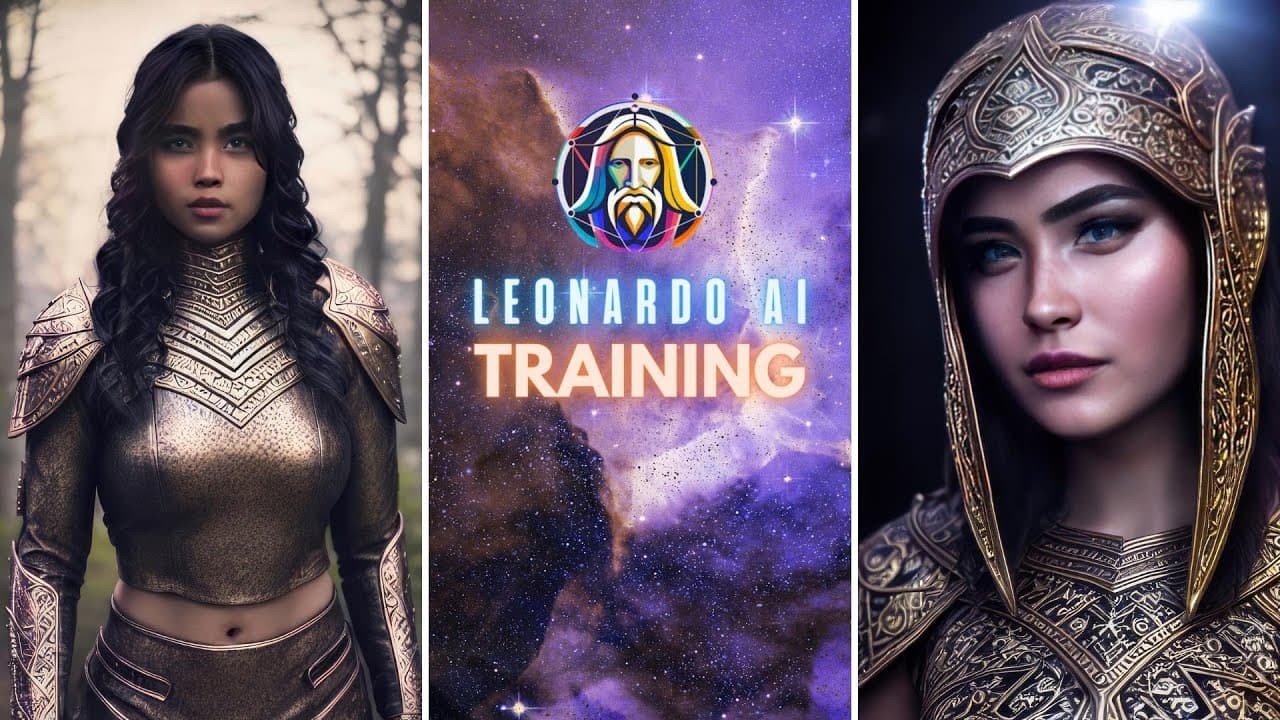
Dive into the fascinating world of Leonardo AI as we explore how to train your own custom models! This guide will walk you through the entire process, from setting up your datasets to generating stunning images, all while maximizing the potential of this innovative platform.
Table of Contents
Read the FAQ 📚
I can't stress enough how important it is to read the FAQ before diving into training datasets on Leonardo AI. It contains invaluable information that will save you time and effort.
Getting Started
Head over to the FAQ section and click on the article about fine-tuning. This document is a quick read and offers essential insights for your training runs.
What Makes a Good Training Run?
A good sweet spot for images is around 8 to 15, depending on what you're training. The minimum is 5 and the maximum is 30 images. For styles, aim for 20-30 images.
Fine-tuning and tweaking are necessary to perfect your model. Training at a 512x512 aspect ratio is common, but you can adjust based on your needs.
Trained Dataset Preview & Setting Up Images 🖼️
Setting up your images is the first crucial step in training your custom model. Let's walk through the process.
Choosing Your Program
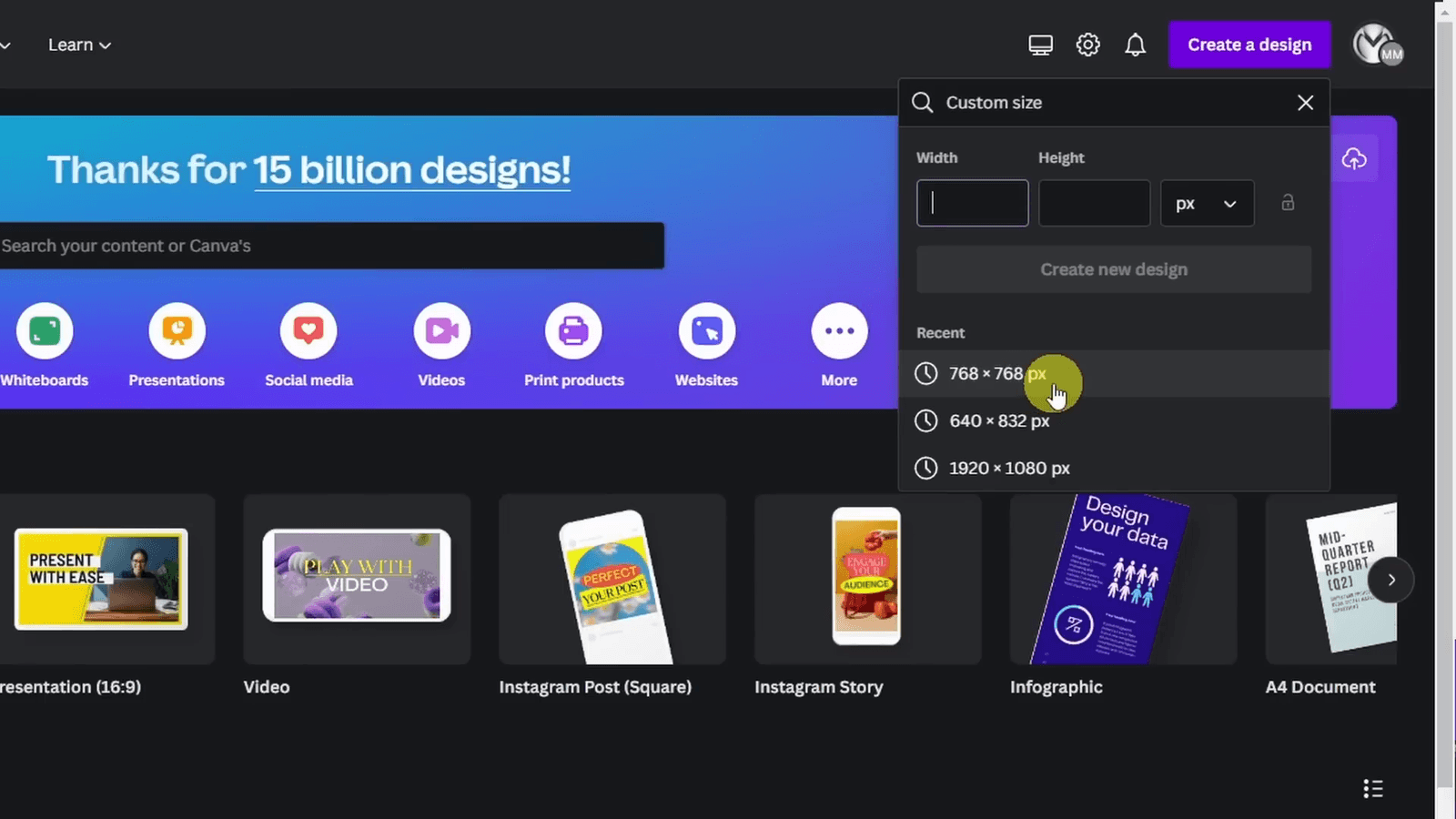
You can use any image editing program you're comfortable with. For a free and user-friendly option, I recommend Canva.
Creating Your Workspace
Go to Canva.com and create an account. Click on 'Create a Design' and select 'Custom Size'. For this example, I used 768x768 pixels.
Uploading Your Images
Once your workspace is ready, click on 'Uploads' on the left side. Upload your images and drag them into the workspace to set your composition.
Create a New Dataset & Import Images 📂
Now that your images are ready, it's time to create a new dataset and import them into Leonardo AI. This is where the magic begins.
Setting Up Your Dataset
First, click on "New Dataset". A prompt will appear asking you to name your dataset. I'm naming mine "Riza Rev One". You can also add a description, but I'll leave mine blank for now.
Importing Your Images
After creating the dataset, you can import your images. Either click to upload or drag and drop your images into the designated area. I chose to drag and drop, and you'll see the images get uploaded instantly.
Training Your Model
Once your images are uploaded, click on "Train Model". You will notice options for advanced training settings, but these might not be available yet. Choose between 512x512 or 768x768 resolution; I'll go with 768x768. Select the appropriate category for your model, such as "Photography". If your model contains NSFW content, make sure to check the NSFW option.
Setting the Instance Prompt
Next, choose the training method. I'll use Stable Diffusion 2.1. Here, you'll need to set an instance prompt. This is a trigger word that activates your model. I'll use "s k s woman". Now, click "Start Training". You will receive an email once the training is complete. You can also monitor the training status by clicking "View Status".
How to Use Your Trained Model 🎨
With your model trained, you can now start generating images using your custom model. Here's how to do it.
Incorporating Your Instance Prompt
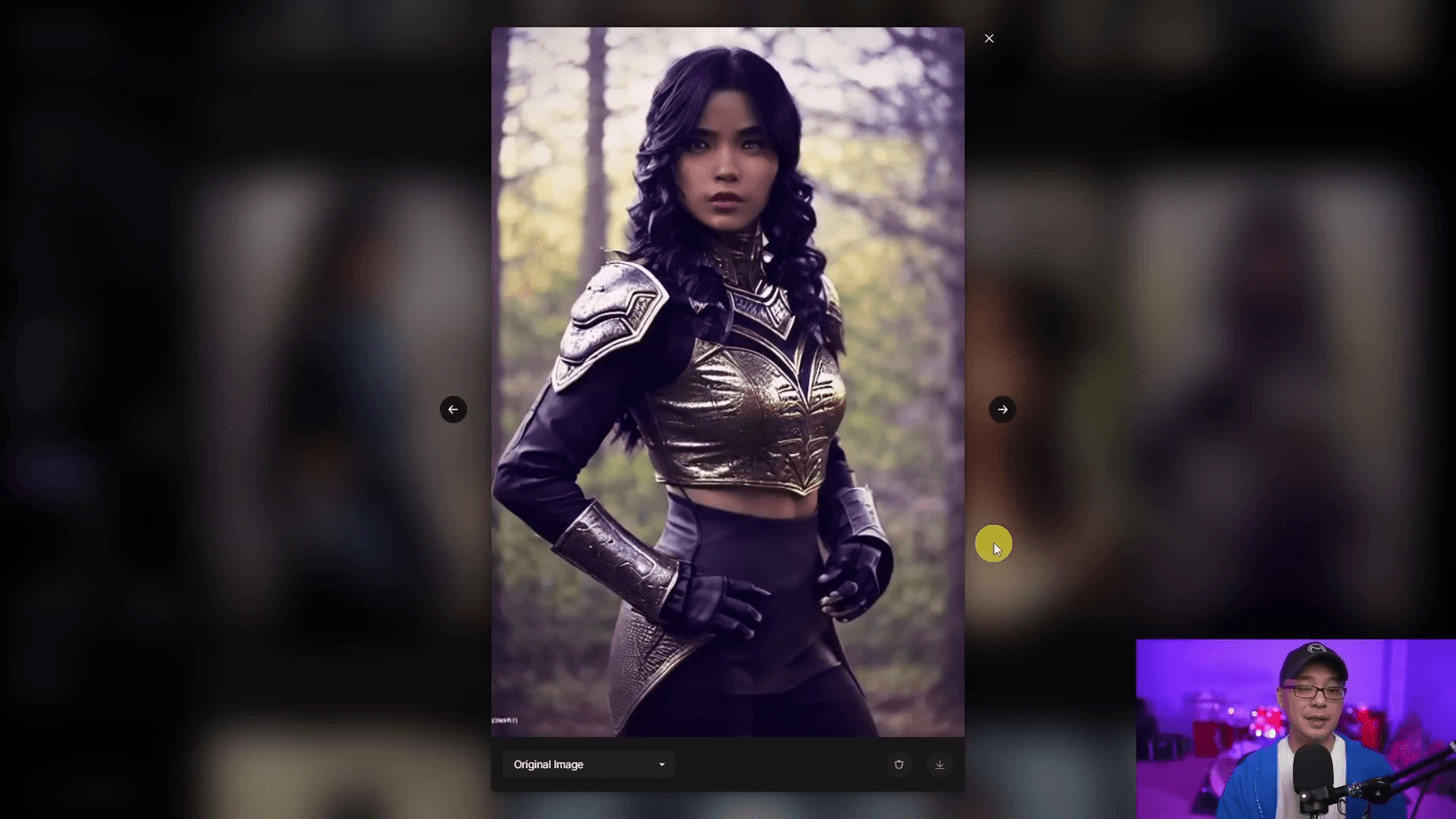
When creating a prompt, include your instance prompt word. It doesn't matter where you place it in the prompt, but I prefer placing it near the beginning. In my example, the prompt is: "beautiful s k s woman warrior wearing Skyrim dragon scale armor".
Choosing Your Model
Make sure to select your specific model. If it's not visible, go to "Select Custom Model". By default, you might be on platform models, so switch to your custom models list. Hover over your model, click "View", and then select "Generate with this model".
Generating Images
Leave the negative prompts on and turn off "Prompt Magic" for now. Stick with the default settings if you're happy with them. Click "Generate" to create four images. You can then adjust the dimensions for a portrait style photo if needed.
Standard Model Examples 📸
Seeing how standard models perform is crucial to understanding the capabilities of Leonardo AI. Let's dive into some examples.
Initial Results
Initially, I noticed some minor issues with the eyes and lips. These can be fixed in post-processing. However, the overall composition was impressive.
Adjusting Steps
To improve the images, I reduced the steps to 30. This made the images less contrasty and aggressive. It’s a small tweak, but it made a big difference.
Weapon and Armor Details
Although the model struggled with weapon details, it accurately captured the armor. This is a common limitation in image generation but manageable with adjustments.
Try Different Schedulers 🗓️
Experimenting with different schedulers can significantly impact your results. Here are my insights.
Using DPM
I prefer using DPM for generating images of people. It tends to produce smoother and more realistic results.
Trying DDIM
DDIM is another scheduler worth trying. It generates images quickly and often yields satisfying results. Switching between these two can help you find the best fit for your needs.
Final Adjustments
After trying different schedulers, I found that 30 steps with DPM worked best for my scenario. The hands and other minor details were not perfect but could be easily fixed in Photoshop.
Leonardo Style & Prompt Magic On 🪄
Leonardo AI offers a unique style and prompt magic feature to enhance your image generation experience. These additions can make a significant difference in the output quality.
Leonardo Style
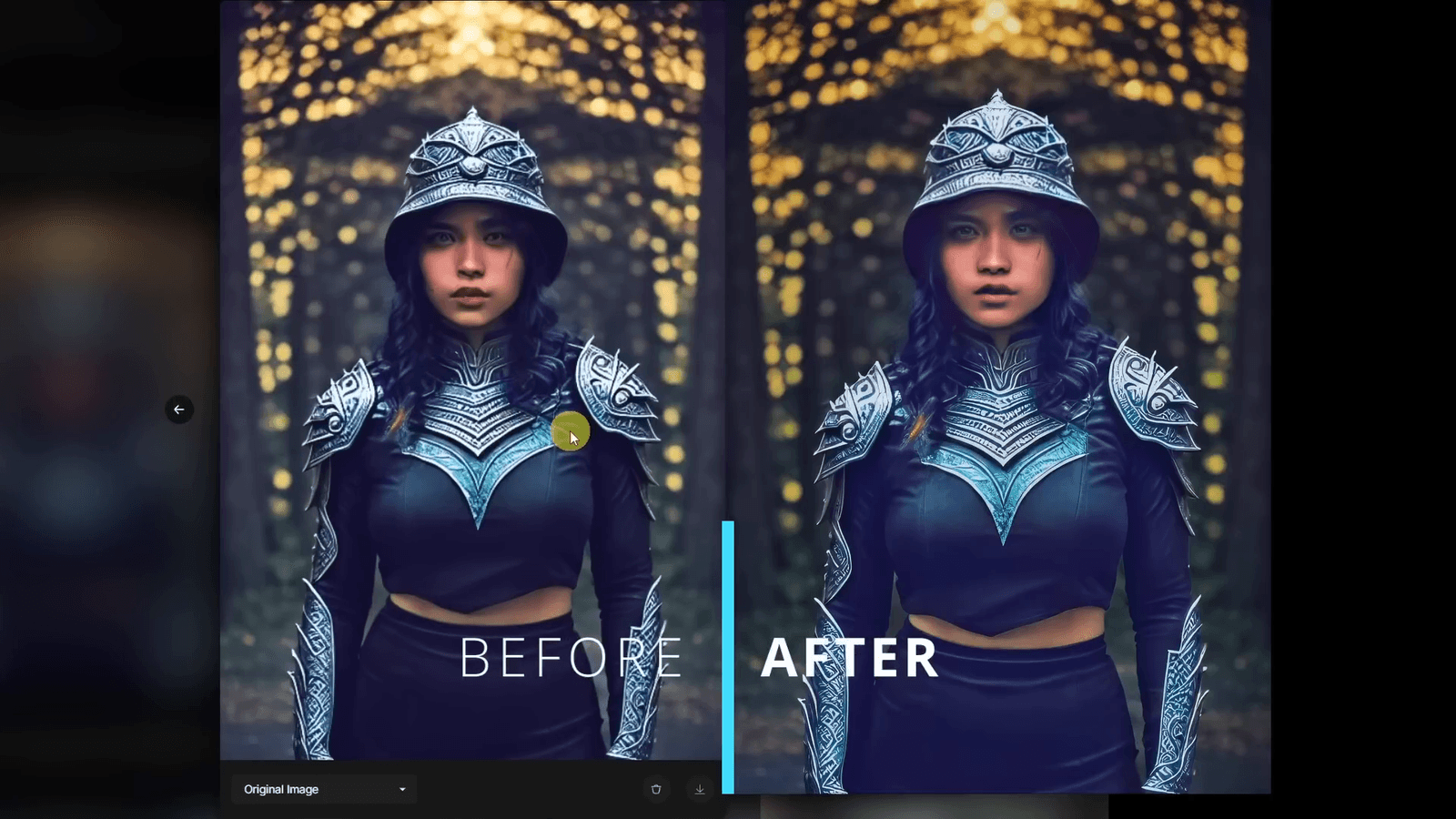
The Leonardo style adds a distinctive touch to your images. This includes effects like bokeh in the background, which can elevate the aesthetics of your creations.
However, some minor distortions, especially in facial features, may occur. Despite this, the style is highly adaptable and can be fine-tuned.
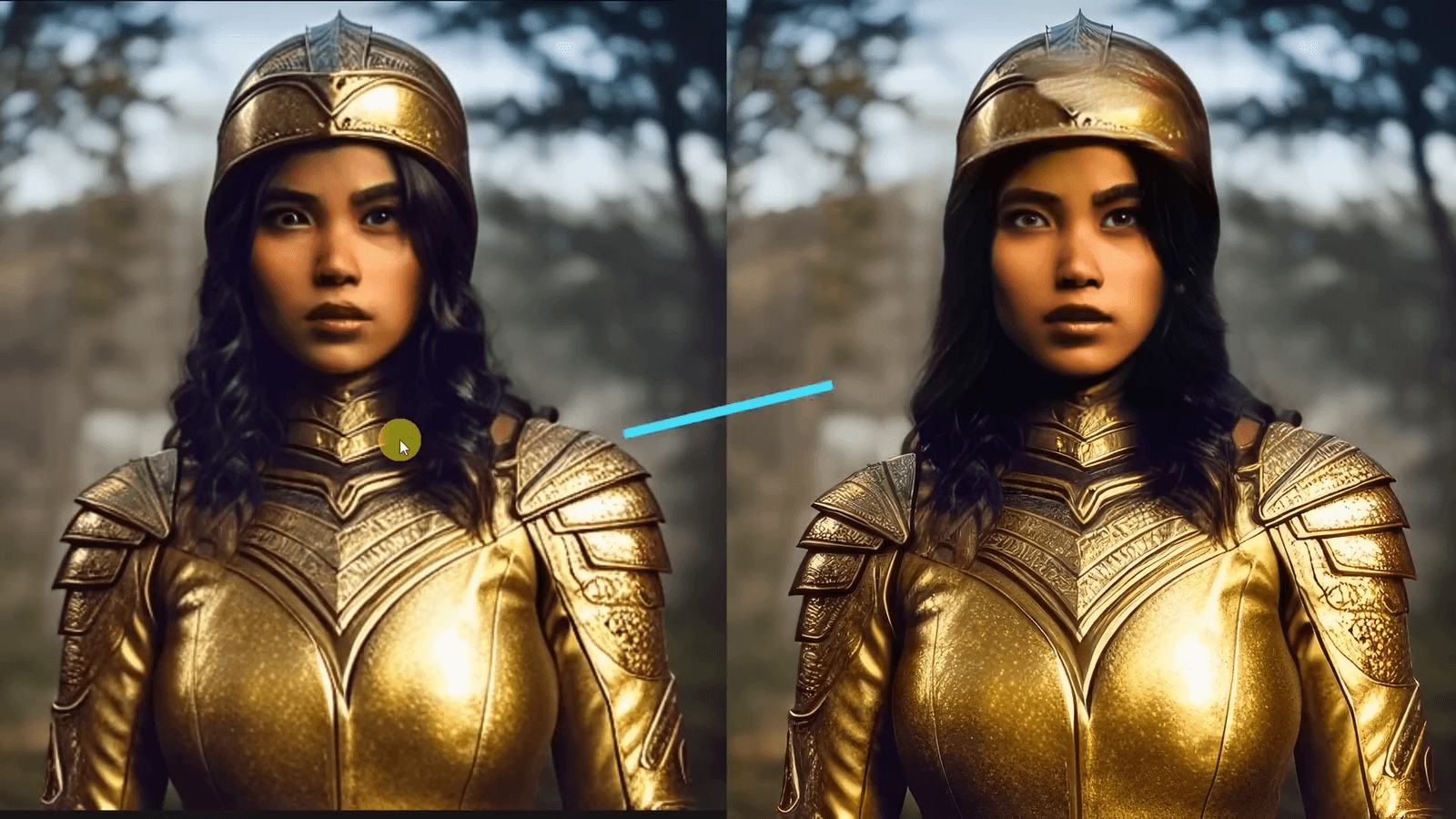
Prompt Magic
Turning on prompt magic can help refine the details in your images. This feature works by enhancing the prompt's influence on the generated image.
For example, experimenting with different prompts can yield varied and often improved results. Don't hesitate to tweak your prompts to achieve the desired outcome.
Final Thoughts 💭
Training custom models with Leonardo AI has been an enlightening experience. While there are areas for improvement, the platform shows great promise.
Pros and Cons
One major advantage is the ability to create highly customized models. This allows for greater creative control over your projects.
Customizable models
Unique Leonardo style
Prompt magic feature
On the downside, some outputs may require additional tweaking. This is particularly true for fine details like facial features.
Future Improvements
I believe further refinement of the training datasets and prompt adjustments will yield better results. Consulting with the Leonardo AI team can also provide valuable insights.
Overall, I'm excited to see how this platform evolves. It has the potential to become a powerful tool for AI-driven image generation.
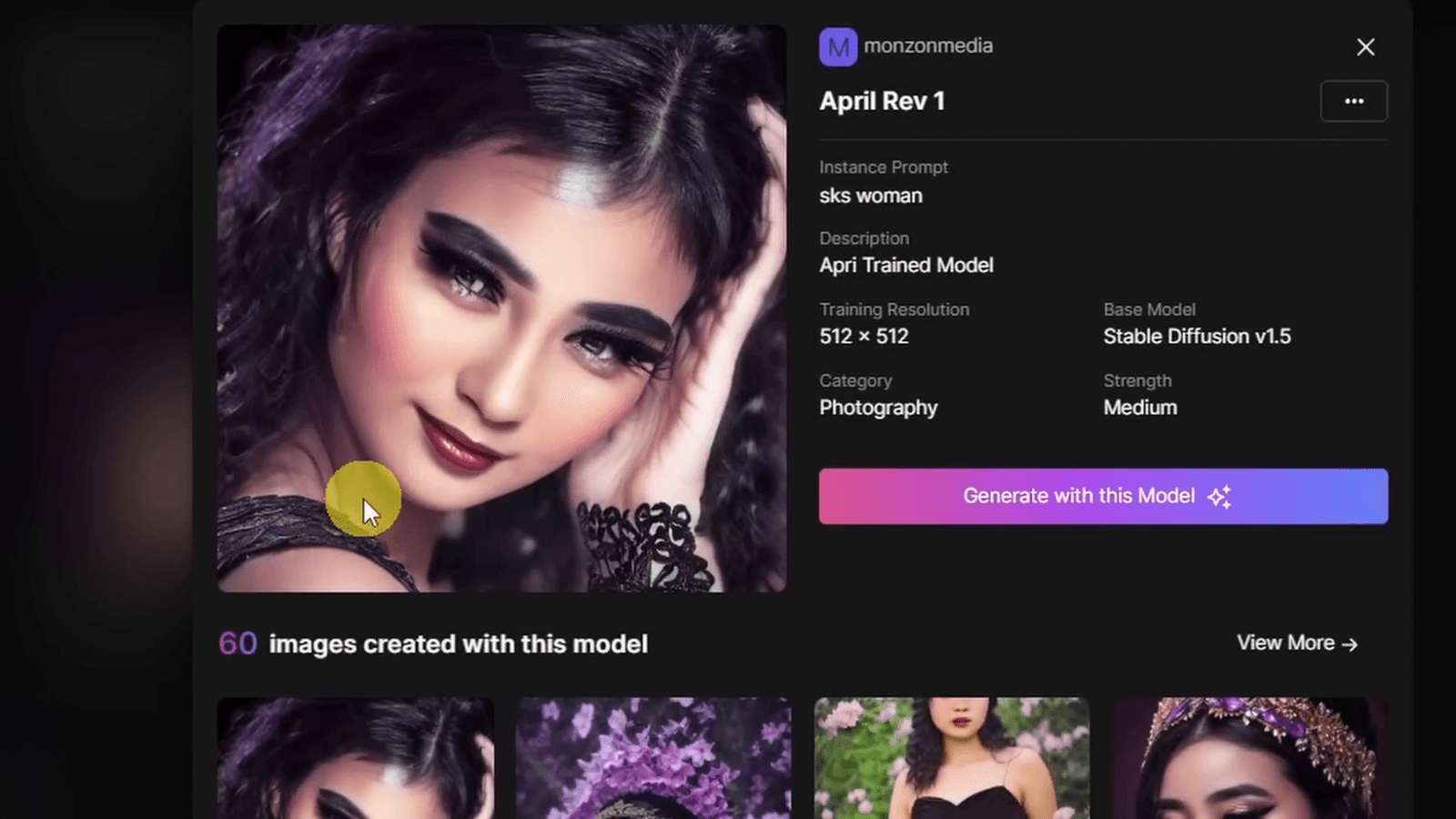
Exploring Limitations and Opportunities 🚀
As with any technology, there are both limitations and opportunities when working with Leonardo AI. Let's dive into these aspects.
Dealing with Imperfect Results
In my experience, some generated images had minor issues, particularly with facial features and hands. These imperfections are fixable but require post-processing.
For instance, using Photoshop can correct janky hands and distorted faces, making the images more polished and presentable.
Optimizer Settings
Experimenting with different settings like steps and schedulers can significantly improve results. I found that reducing the steps to 30 made images less aggressive and more natural.
Use DPM for smoother results
Try DDIM for quicker generations
Future Prospects
Despite some limitations, Leonardo AI offers exciting opportunities. The ability to train custom models opens up endless creative possibilities.
Continued experimentation and tweaking can lead to even better results. Engaging with the Leonardo AI community can also provide valuable insights and tips.
Engagement with the Community 🌐
Engaging with the Leonardo AI community has been incredibly beneficial. Here's how it has helped me and can help you too.
Community Support
The Leonardo AI community is active and supportive. They offer valuable feedback and insights that can help improve your models and results.
For example, the team at Leonardo AI commented on my previous video, clarifying features like outpainting and the unzoom feature.
Sharing Experiences
Sharing your experiences and challenges with the community can lead to collective problem-solving. Many users face similar issues, and discussing them can lead to effective solutions.
Join forums and discussion groups
Share your results and get feedback
Continuous Learning
Engaging with the community keeps you updated on the latest features and best practices. This continuous learning helps you make the most out of Leonardo AI.
For instance, trying different images and getting advice from other users can lead to discovering new techniques and improvements.
FAQ ❓
Here are some frequently asked questions to help you navigate Leonardo AI more effectively.
What is the ideal number of images for training?
A good range is between 8 to 15 images for general training. For styles, aim for 20-30 images. The minimum is 5, and the maximum is 30 images.
What resolution should I use for training?
Training at a 512x512 aspect ratio is common. However, you can adjust based on your needs. Options like 768x768 are also available.
What should I include in my negative prompts?
Negative prompts help filter out unwanted elements. Include terms like "ugly, duplicate, morbid, mutilated, out of frame, extra fingers, mutated hands" to refine your results.
How do I set up my dataset?
Click on "New Dataset" and name it. Import your images by either clicking to upload or dragging and dropping them into the designated area.
What are advanced training settings?
Advanced training settings allow for more control over the training process. Choose between resolutions like 512x512 or 768x768, and select the appropriate category for your model.
Can I monitor the training status?
Yes, you can monitor the training status by clicking "View Status". You will also receive an email once the training is complete.
You might also like
August 14, 2024 · 11 min read
Creating Consistent AI Video Characters: A Comprehensive Guide
Discover how to create your own consistent characters using AI video technology with Pix First. This guide will walk you through the entire process, from…
August 14, 2024 · 5 min read
Exploring Cling: The New AI Video Tool That Surpasses Sora
In the rapidly evolving world of AI video technology, Cling has emerged as a game-changer, boasting impressive capabilities that challenge existing tools like…
August 14, 2024 · 11 min read
Exploring the Best Free AI Video Tools: A Comprehensive Guide In the ever-evolving landscape of video production, AI tools are transforming how we create and edit content. This blog delves into the top free AI video tools available today, providing insights into their features and capabilities to help you enhance your video creation process. Table of Contents Intro 🎬 What is free? 🆓 Live Portrait 🎨 Animation 🎥 Demo 🎥 Korea 🇰🇷 Crea 🎨 Invid 📹 PixVerse 🖌️ PikaArt 🎨 Opa 🎬 Chat GPT 🤖 AI Features 🤖 FAQ ❓ Intro 🎬 Creating videos has never been easier, thanks to the rise of AI tools. These tools can help you edit, enhance, and even create entire films effortlessly. Let's explore some of the best free AI video tools available today. What is free? 🆓 Different Levels of Free Free tools come in various forms. Open-source models are free to download and run on your computer, but they require technical know-how and a powerful machine. Cloud options let you run these models without the hardware, but you pay for cloud computing. Free Web Apps Free web apps offer unlimited access with optional paid upgrades. These are user-friendly and accessible directly through your browser. Free Tiers Some services have free tiers with daily renewable credits. These allow you to use the tool for free, with the option to upgrade for more intensive use. Live Portrait 🎨 Live Portrait is an innovative tool that brings still images to life. By leveraging advanced AI models, it animates facial features, creating engaging and dynamic portraits. How It Works The tool uses a "driving video" to guide the animation. This driving video captures the movements and expressions that will be applied to the still image. Select an image Choose a driving video Run the animation Step-by-Step Guide First, clear the default image input and upload your chosen image. You can use any image file you like. Next, select a driving video from the provided library or use your own. Download the video and upload it to the tool. Finally, click 'Run' and watch as your image comes to life in about 20 seconds. Practical Uses This tool is perfect for creating realistic facial animations for various applications. You can record yourself reading a script and sync the voiceover with the animated portrait for perfect lip-syncing. It's an excellent choice for marketing, educational content, and personalized video messages. Animation 🎥 Animation tools have evolved, and AI is at the forefront of this transformation. Toonecrafter is an exceptional AI animation model designed for creating high-quality anime-style animations. Creating Stunning Animations Toonecrafter produces animations that rival professional studios. The tool is particularly effective for anime, thanks to its specialized training on a vast library of anime films. Getting Started To create an animation, upload two photos. The tool animates the transition from one shot to another, ensuring smooth and consistent character movements. Upload first photo Upload second photo Run the animation Tips for Best Results Consistency is key. Ensure your characters are consistent between frames. Cropping the first frame can help maintain this consistency. Toonecrafter excels in creating effects commonly seen in anime, making it ideal for fans and creators of this genre. Applications From short films to full-length features, Toonecrafter is versatile. It's perfect for animators looking to produce high-quality content without the need for extensive resources. Whether for personal projects or professional work, this tool is a game-changer in the world of animation. Demo 🎥 Experience the power of AI with a hands-on demo. This section will guide you through the process of creating animations using AI tools. Step-by-Step Process To start, take your shots. You can use tools like MidJourney to generate animations. Crop the images slightly to create a difference between the shots. Upload both images Decide on zoom preferences Press 'Run' Animation Timing Animating between two frames takes around 30 seconds. You can add up to ten frames to create longer videos, allowing for smooth transitions between scenes. Watch as your shot renders quickly, showcasing movement in clothing and hair while maintaining character consistency. Exploring Different Models Explore various AI generation models tailored for different needs. Whether you need video colorization or other effects, there's a tool for you. For example, colorize old black-and-white footage to bring it to life. Korea 🇰🇷 Korea introduces a powerful AI video generator called Kria. This tool excels in creating unique and professional-quality videos. Advanced Visual Effects Kria is perfect for generating morphing, dreamlike effects. Use it to create industry-leading visual transformations. Project Applications One standout project involves transitioning a character from youth to old age. This effect is ideal for narratives requiring time jumps. Create visually engaging effects of rapid aging or seamless scene transitions while maintaining character consistency. Customization and Control Kria offers control over keyframes, allowing precise transitions. Define keyframes with its AI art generation model, which updates images based on prompts. Iterate quickly by typing detailed prompts to refine your visuals in real-time. Crea 🎨 Crea is an innovative AI tool that simplifies video creation. It allows users to generate entire videos from a single prompt. This tool handles everything from scripting to voiceover. How It Works To start, enter a detailed prompt into Crea. The tool generates a script, selects music, and edits the footage to create a cohesive video. For instance, creating a one-minute YouTube explainer about samurai is as simple as typing in a few sentences. Customizing Your Video Crea offers customization options to tailor your video to your needs. You can select the length, add specific quotes, choose music, and even pick the voice for narration. Select video length Add quotes Choose music Select voice Voice Cloning Crea includes a voice cloning feature. By recording a thirty-second clip, you can clone your voice for use in videos. This adds a personal touch to your content. The process is straightforward and can be done with a phone or professional recording equipment. Premium Features With the premium version, users gain access to stock footage from iStock and premium audio options. The free version uses open-source stock. This ensures high-quality visuals and sound for your projects. Applications Crea is perfect for creating informative, engaging videos quickly. It's ideal for marketers, educators, and content creators looking to produce professional-quality videos without extensive resources. Invid 📹 Invid is a robust AI video generation tool that excels in creating detailed and dynamic videos. It offers a range of features to enhance your video production capabilities. Generating Videos Invid allows you to generate videos by entering a detailed prompt. The tool handles scriptwriting, voiceover, music selection, and editing. This makes it easy to create high-quality videos quickly and efficiently. Voice Cloning and Language Options One standout feature is voice cloning. By recording a short clip, you can clone your voice for use in videos. Invid also supports multiple languages, allowing you to generate videos in various languages using your cloned voice. This feature is particularly useful for creators aiming to reach a global audience. Customization Options Invid offers extensive customization options. Users can define keyframes, add quotes, select music, and choose the voice for narration. The tool ensures that your videos are tailored to your specific needs. Define keyframes Add quotes Select music Choose voice Premium vs. Free Features The premium version of Invid provides access to stock footage from iStock and premium audio options. The free version uses open-source stock. This ensures that users have access to high-quality resources for their video projects. Practical Applications Invid is ideal for creating educational content, marketing videos, and personalized messages. Its ease of use and powerful features make it a valuable tool for both amateur and professional video creators. Whether you're creating a short explainer video or a detailed tutorial, Invid has the tools you need to produce engaging and informative content. PixVerse 🖌️ PixVerse is a top-tier AI video generation tool that offers incredible features for creating unique videos. Daily Free Credits PixVerse provides you with a set number of free credits every day, allowing you to generate up to five AI videos daily. This makes it accessible and cost-effective for regular use. The premium plan is also reasonably priced at just five dollars a month, offering additional benefits and more extensive usage. Magic Brush Tool One standout feature of PixVerse is its Magic Brush Tool. This tool lets you select specific parts of an image and define their movements, making your animations more dynamic and personalized. Select image parts Define movements Create dynamic animations Practical Applications PixVerse is perfect for animating images generated from AI art tools. You can animate limbs, facial features, or even vehicles moving across the screen. It also includes an auto-select feature, which intelligently identifies and segments parts of your image for easier animation. Upscaling Tool PixVerse offers an upscaling tool that enhances your videos up to 4K resolution. This ensures your videos maintain high quality, making them suitable for various professional applications. PikaArt 🎨 PikaArt is another excellent AI video tool, offering unique features that make video creation simple and effective. Daily Free Credits Every day, PikaArt grants you thirty free credits to create AI videos. This allows for consistent and regular video production without incurring high costs. Lip Syncing Feature A standout feature of PikaArt is its lip-syncing capability. You can input text, audio, or dialogue, and the tool will sync it with your characters' lip movements. Input text or audio Sync with character lips Create realistic dialogues Ideal for Narrative Films This tool is particularly useful for creating narrative films. The lip-syncing feature ensures that your characters' dialogues appear natural and engaging, enhancing the storytelling experience. Whether you're working on short films or full-length features, PikaArt's capabilities make it an invaluable resource for video creators. Opa 🎬 Opa is a smart AI video tool designed to streamline the editing of long-form content. It automatically selects the most engaging clips and edits them down for you. Features Opa adds captions and suggests titles for your edited clips. This makes it a powerful tool for creating short-form videos from longer content. Editing Options You can download a Premiere file to edit in your preferred software or use Opa's online editor. This flexibility ensures you can work in the environment that suits you best. Generous Free Plan The free plan offers sixty minutes of video content per month. This is ample for content creators looking to trim down their videos into engaging shorts. Premium Upgrades For $9.5 per month, you get access to 3,600 processing minutes per year and AI-generated B-roll. This upgrade unlocks more advanced features for extensive video projects. Scheduling Opa also allows you to schedule your edited videos directly from the app, making it a comprehensive tool for efficient video production. Chat GPT 🤖 Chat GPT is a versatile AI tool that can significantly enhance your video production setup. It's particularly useful for optimizing filming locations. Optimizing Your Setup By sending an image of your setup to Chat GPT, you can receive suggestions to improve your filming environment. It offers tips on adjusting headroom, balancing background symmetry, and fine-tuning lighting. Incremental Improvements Chat GPT provides incremental changes to enhance the professionalism of your studio setup. This step-by-step guidance ensures you achieve optimal results. Additional Capabilities Chat GPT can assist with various tasks, offering a fresh perspective. Whether you need to refine your setup or solve other challenges, this AI tool is invaluable. AI Features 🤖 Filmora offers a suite of AI-driven features designed to simplify and enhance your video editing process. These tools are perfect for beginners and professionals alike, making editing more efficient and creative. AI Copilot Editing AI Copilot allows you to converse with an AI bot to edit your video. You can send a chat message to the bot, such as asking it to lighten the video, and it will automatically apply the necessary color grading. AI Text-Based Editing This feature offers a transcript of your video. As you delete words from the transcript, the corresponding video footage is automatically edited. It also identifies long pauses, speeding up the editing process significantly. AI Thumbnail Creator Filmora's AI Thumbnail Creator generates engaging thumbnails by adding advanced text effects. It can place text between layers of your image, creating a visually appealing thumbnail. AI Music Generator Create unique background music for your projects with Filmora's AI Music Generator. This tool allows you to generate custom music that fits the mood and tone of your video. Additional AI Tools Audio quality enhancement Smart masking for green screen work Automatic effect application FAQ ❓ Here are some frequently asked questions about Filmora's AI features to help you get started. Is the free version of Filmora sufficient for beginners? Yes, the free version offers ample features for beginners. You can perform all essential editing tasks without any cost. How does AI text-based editing work? Filmora provides a transcript of your video. You can delete words from this transcript, and the video will automatically update to reflect these changes. What is AI Copilot editing? AI Copilot allows you to chat with an AI bot to make editing adjustments. For example, you can ask it to lighten your video, and it will apply the changes for you. Can I create custom music with Filmora? Yes, Filmora's AI Music Generator lets you create unique background music tailored to your video's needs. Are there any premium features worth upgrading for? Upgrading unlocks additional features like stock footage from iStock and premium audio options, enhancing the quality of your projects.
In the ever-evolving landscape of video production, AI tools are transforming how we create and edit content. This blog delves into the top free AI video tools…